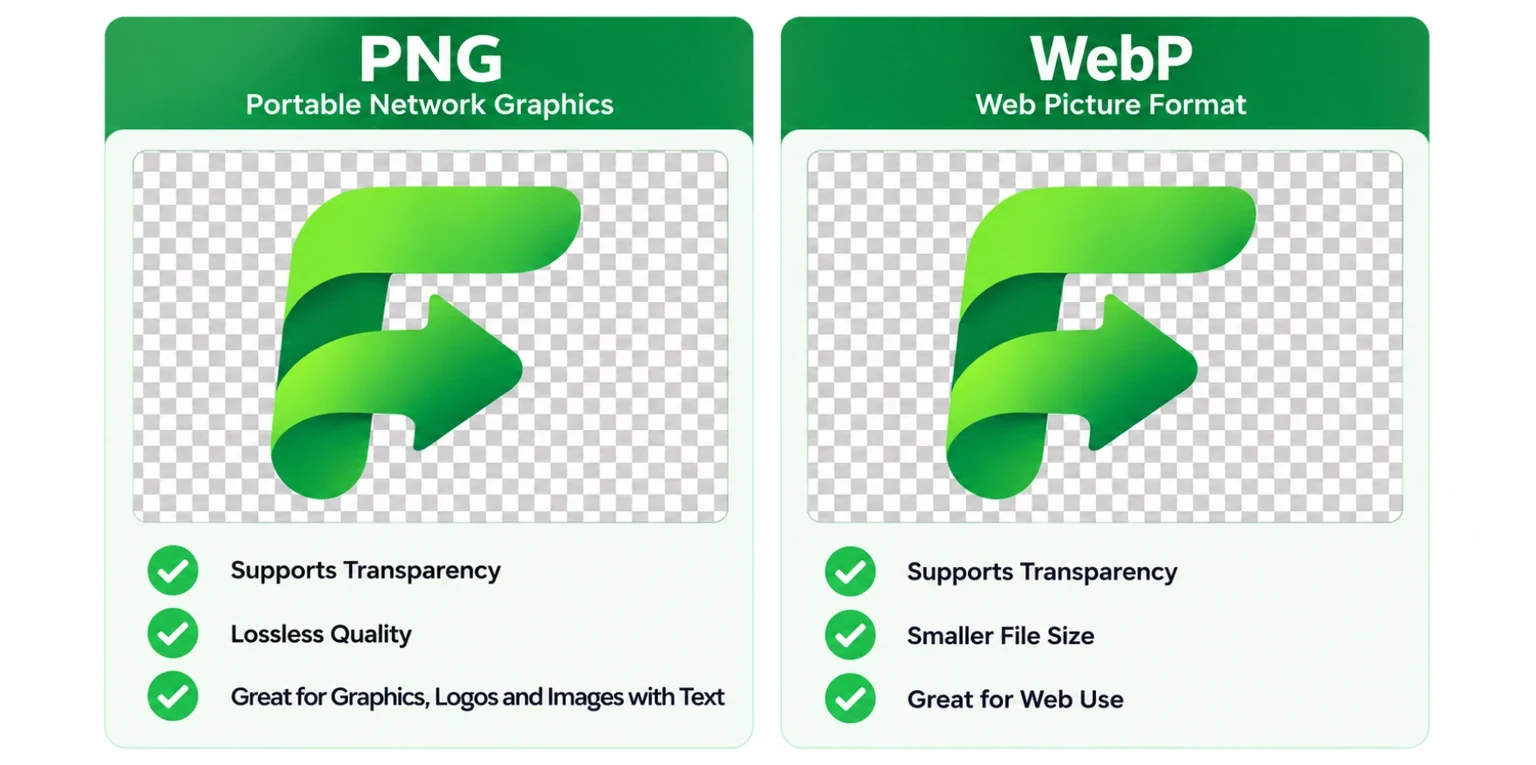
Both formats can hold a sharp image with a see-through background. They work differently under the hood, and that changes file size, editing, and where the file will open. This guide compares them side by side, shows real file size numbers, and ends with when to convert one into the other.
What Is WebP?
WebP is an image format Google released in 2010. It was designed to make web images smaller, and it can stand in for PNG, JPG, and GIF.
How WebP compression works
Lossy WebP borrows from video compression. It is based on the VP8 video codec. It splits the picture into small blocks, predicts each block from the ones next to it, and stores only what the prediction missed. Lossless WebP uses a different method. It predicts each pixel from its neighbors, then reuses colors and patterns it has already seen, so repeated areas cost almost nothing to store.
Lossy and lossless WebP
A WebP file can be either type, and you choose when you export. Lossy WebP drops small details, the way JPG does, and makes much smaller files. Lossless WebP keeps every pixel, the way PNG does. In our tests, a PNG converted to lossless WebP and decoded again matched the original pixel for pixel.
WebP transparency support
WebP has an alpha channel in both modes, so each pixel can be fully clear, fully solid, or anywhere in between. That is a real advantage over JPG, which has no transparency at all. It also means a lossy WebP can keep a see-through background. A transparent logo we saved as lossy WebP kept its transparency and came out at about an eighth of the PNG's size.
What Is PNG?
PNG (Portable Network Graphics) appeared in the mid-1990s as a free replacement for GIF. It is an open standard published by the W3C, and it is still the default for screenshots, logos, and anything with hard edges.
How PNG compression works
PNG is always lossless. Before compressing, it runs each row of pixels through a filter that predicts a pixel from the ones next to it and stores the difference. Then it packs the result with DEFLATE, the same method behind ZIP files. Flat colors and repeated patterns shrink well. Photos and smooth gradients don't, because neighboring pixels are rarely identical.
PNG transparency
PNG supports a full alpha channel. Each pixel can be anywhere from clear to solid, so soft edges and drop shadows blend cleanly over any background. It also has an 8-bit palette mode with limited transparency, which makes smaller files for simple graphics. PNG can even store 16 bits per color channel, which is more than WebP allows.
Common PNG use cases
- Logos and icons
- Screenshots
- Charts, diagrams, and other graphics with text
- Images you plan to edit again
- Files you hand to designers, clients, or a print shop
WebP vs PNG: Key Differences
Here is how the two compare on the points people ask about most.
WebP vs PNG at a glance
| Feature | WebP | PNG |
|---|---|---|
| Compression | Lossy or lossless | Lossless only |
| Transparency | Yes, in both modes | Yes, full alpha channel |
| File size | Smaller at the same look | Larger, especially for photos |
| Web use | Best for fast-loading pages | Fine for small logos and icons |
| Editing | Fine in current editors, patchy in older ones | Works almost everywhere |
| Browser support | All current major browsers | All browsers |
| Animation | Yes | No (APNG is a separate extension) |
In short, WebP wins on file size and PNG wins on compatibility. Everything else depends on what the image is and where it is going.
WebP vs PNG Image Quality
Quality depends on which WebP mode you use.
- Lossless WebP is identical to PNG. Same pixels, same colors, same transparency. Only the file size differs.
- Lossy WebP is close, not identical. At quality settings around 80 to 90, photos usually look the same to the eye. Sharp text, thin lines, and hard color edges are where you might see fuzz or small color shifts, especially at lower settings.
- Bit depth differs. PNG can store 16 bits per channel and WebP stores 8. That rarely matters on the web, but it can matter for scientific images or heavy color editing.
- WebP has a size limit. An image can be at most 16,383 pixels on each side. PNG allows far larger images.
For most web images, the difference between a well-exported WebP and a PNG is too small to notice. A simple rule works: use lossless WebP or PNG when you can't afford any change, and lossy WebP when a smaller file matters more.
Which Format Has a Smaller File Size?
WebP, in almost every case. Google's study of 12,000 PNG images found lossless WebP files about 23 percent smaller than PNGs run through the ZopfliPNG optimizer, and 42 percent smaller than standard libpng output. Lossy WebP goes much further, because it is allowed to drop detail.
We also ran our own test on four real images. Each PNG was saved with Pillow's optimize option, and the WebP versions were made with libwebp. The lossy files used quality 80.
Our file size test
| Image | PNG | Lossless WebP | Lossy WebP (80) |
|---|---|---|---|
| Logo with transparency, 1461 × 328 | 164 KB | 102 KB (38% smaller) | 20 KB (88% smaller) |
| Icon with transparency, 512 × 512 | 106 KB | 74 KB (30% smaller) | 16 KB (85% smaller) |
| Graphic with text, 1200 × 630 | 306 KB | 199 KB (35% smaller) | 18 KB (94% smaller) |
| Photograph, 1600 × 900 | 1,836 KB | 1,399 KB (24% smaller) | 130 KB (93% smaller) |
Same images, three formats
- PNG
- Lossless WebP
- Lossy WebP (quality 80)
Logo with transparency (1461 × 328)
Icon with transparency (512 × 512)
Graphic with text (1200 × 630)
Photograph (1600 × 900)
What the numbers show:
- Lossless WebP saved 24 to 38 percent, which fits Google's findings.
- Lossy WebP saved 85 to 94 percent. That is a huge cut, but it is not the same image, so look at the result before you use it, especially on text.
- A photograph saved as PNG is heavy. At 1600 pixels wide it was about 1.8 MB, and the lossy WebP was about 130 KB.
Your results will differ. A stronger PNG optimizer would shrink the PNG side a little, and savings depend on the image, so test your own files.
WebP vs PNG for Transparent Images
Both formats keep transparency, so the choice comes down to size and where the image is going.
- On your own website: lossy WebP with transparency is far smaller than PNG. In our test, the transparent logo dropped from 164 KB to 20 KB.
- For a logo you pass around: use PNG, or SVG if you have a vector version. Email programs, slide decks, and print services take PNG without trouble.
- After a lossy export: check soft edges and shadows. If they look rough, raise the quality or switch to lossless.
- JPG is not an option. It can't store transparency, so see-through areas turn into a solid color.
WebP vs PNG for Websites
Images are often the heaviest part of a page, and heavy pages load slowly. Google measures how fast the main image or text block appears with a score called Largest Contentful Paint, so image size affects both visitors and search performance.
A few rules cover most sites:
- Photos, banners, and product images: lossy WebP at quality 75 to 85.
- Screenshots and diagrams with text: lossless WebP or PNG.
- Logos: SVG if you have a vector version, otherwise PNG or lossless WebP.
- Always set width and height on the image tag so the page doesn't jump while it loads.
You don't have to pick only one. The next section shows how to send WebP to browsers that support it and PNG to the rest.
Browser Support for WebP vs PNG
PNG works everywhere, and has for decades. WebP is now close to that. According to Can I use, about 97 percent of browsers in use worldwide support it. That includes current Chrome, Edge, Firefox, Opera, and Safari. Chrome added WebP in version 32, Edge in version 18, Firefox in version 65, and Safari in version 16. On the Mac, Safari 14 and 15 also handle WebP, but only on macOS 11 (Big Sur) or later.
The gaps that remain are mostly outside browsers. Some older desktop apps, email programs, print services, and upload forms still reject WebP.
How to add a PNG fallback with the picture tag
The <picture> element lets the browser choose. It goes through the source tags in order and uses the first type it understands. If none match, it falls back to the image tag inside.
<picture>
  <source srcset="/images/logo.webp" type="image/webp">
  <img src="/images/logo.png" alt="Company logo" width="480" height="108">
</picture>
Three details matter:
- The image tag is required. It is the fallback, and it carries the alt text.
- Put width and height on it to avoid layout shift.
- Keep the PNG (or JPG) as the fallback file, not another WebP.
Some hosts and image services can do this for you by checking which formats the browser accepts. If yours does, you can upload one source image and let it serve WebP automatically.
WebP vs PNG for Logos and Graphics
A logo has to work in many places, which is why people so often pick the wrong format for it.
- Keep a master file. An SVG is best. If you don't have one, keep a large PNG.
- On your website, a lossless WebP of the same logo is smaller. In our test it was 102 KB against 164 KB.
- Everywhere else, use PNG. Email signatures, slide decks, social profiles, marketplaces, and printers all open it.
- For icons and interface graphics, use lossless WebP or lossy at quality 90 or higher. Lower settings can blur thin lines.
Should You Convert WebP to PNG?
Sometimes, yes. Convert when:
- An editor, an older design app, or a print service won't open the .webp file.
- A site accepts PNG but not WebP.
- You want a lossless working copy you can edit and save again without extra loss.
- You are sending the file to someone who may not be able to open WebP.
Don't convert just to make a file smaller. In our tests the PNG was 31 to 61 percent bigger than the lossless WebP.
Converting doesn't cost you quality. The pixels are copied exactly, and transparency carries over. It also can't bring back detail that a lossy WebP already dropped, so the PNG is a lossless copy of a picture that was already slightly softer. You can convert WebP to PNG right in your browser, and the file stays on your device.
If the PNG then comes out larger than an upload limit allows, our image compressor can reduce its colors to shrink it. Check the result, since fewer colors can change gradients. And if the site takes JPG and you don't need transparency, our WebP to JPG converter gives you a file that works nearly everywhere.
Should You Convert PNG to WebP?
For images on your own website, usually yes. It helps most with:
- Hero and banner images that slow the top of a page
- Product photos and cutouts that need a transparent background
- Screenshots in help articles
- Visitors on slow mobile connections
Keep the PNG as your master copy and publish the WebP. Leave the PNG as it is when you will edit the image again, send it to other people, or use it somewhere that may not accept WebP, such as email or print.
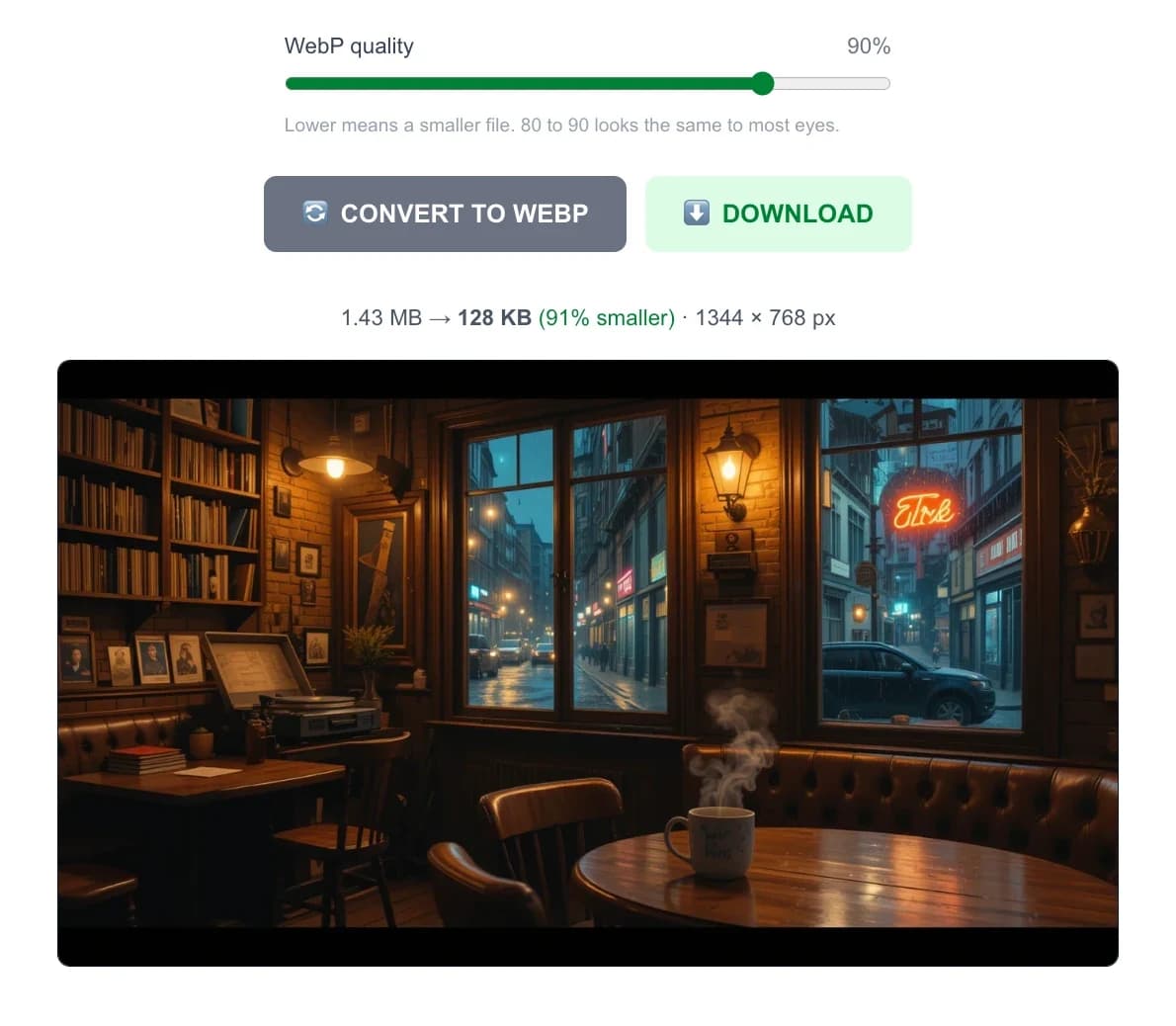
You can convert PNG to WebP in your browser. It keeps transparency, lets you set the quality, and shows how much you saved. Start at 85 to 90 for logos and interface graphics, and 75 to 85 for large decorative images. Lower the setting until you can just see a change, then go one step back, and check text and edges at full size. To cover the few browsers without WebP, use the picture tag from the browser support section.
Frequently Asked Questions
Is WebP better quality than PNG?
Not at the same setting. Lossless WebP matches PNG exactly, and lossy WebP is close but gives up some detail to get a smaller file. Where WebP wins is quality per kilobyte: a lossy WebP usually looks the same to the eye as a much larger PNG or JPG.
Does WebP support transparency?
Yes. WebP has an alpha channel in both lossy and lossless modes, so it keeps a see-through background and soft edges. JPG can't do that.
Does converting WebP to PNG lose quality?
No. The pixels are copied exactly, and transparency carries over. A PNG can't bring back detail that a lossy WebP already dropped, and it will usually be a lot bigger than the WebP it came from.
Is PNG better for editing?
Usually, yes. PNG is lossless, so you can open, change, and save it again with no added loss, and almost every editor supports it. Current editors open WebP too, but older programs may not, and a lossy WebP loses a little more detail each time you re-save it.
Should websites use WebP or PNG?
Use WebP for photos and large images, since it loads faster. Use PNG, or SVG, for logos and small graphics where exact edges and compatibility matter. You can also serve both with the picture element, WebP first and PNG as the fallback.
Can I use WebP instead of PNG for a logo with a transparent background?
On your own website, yes. WebP keeps the transparency, and a lossless WebP is smaller than the PNG. For a logo you send to other people or upload to other services, keep using PNG, because not every app or form accepts WebP.
What happens if I upload a WebP image to a site that only accepts PNG or JPG?
The upload usually fails with a file type error. Renaming the file to .png doesn't help, because the data inside is still WebP. Convert the image first: to PNG if you need transparency, or to JPG if you don't.
Sources and further reading
- Image file type and format guide (MDN Web Docs) Browser support, transparency, and animation for WebP, PNG, and APNG.
- WebP: an image format for the web (Google for Developers) Overview of lossy and lossless WebP.
- WebP lossless and alpha channel study (Google for Developers) The 12,000-image comparison with PNG.
- Portable Network Graphics (PNG) Specification (W3C) The PNG standard, including the alpha channel and 16-bit depth.
- WebP image format (Can I use) Current browser support numbers.
- The picture element (MDN Web Docs) How to offer more than one image format.
- Largest Contentful Paint (web.dev) The speed score that image size affects.